APP GUIDE

INTRODUCTION

Here’s how to set up the FIRMENLADEN app so you can charge on the go.

With the FIRMENLADEN app, you have access to your charging sessions at any time—whether you’re on the go, at the office, or at home. To help you get started right away, we’ll walk you through the process step by step, showing you how to set up the app and get the most out of it.

Before following these instructions, please make sure you have your login credentials from the FIRMENLADEN platform handy!

Before you begin, please make sure you have your login data from the FIRMENLADEN-Platform ready! 

STEP 1

Download the FIRMENLADEN App

Open the Google Play Store (for Android) or the App Store (for iOS) and type “FIRMENLADEN” in the search bar.
Then tap “Install.”

Alternatively, simply scan the QR code to be taken directly to the app store.

STEP 2

Log in and get started
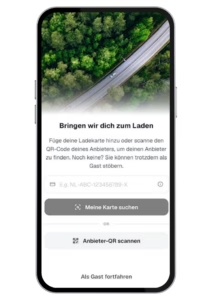
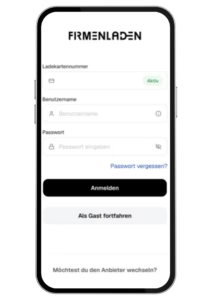
  • Open the app

Open the FIRMENLADEN app on your smartphone.

  • Enter your charging card number

Enter your FIRMENLADEN charging card number. Make sure to enter the complete card number correctly.

  • Enter your login credentials

Log in using the credentials you received by email after successfully registering on the FIRMENLADEN platform.
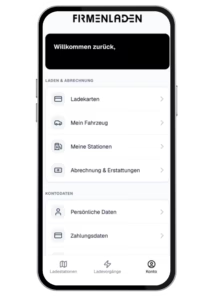
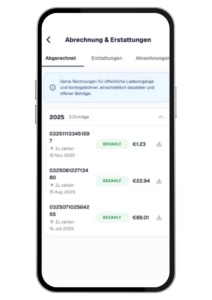


  • Log in

    After logging in, you will have full access to your personal user portal:

Manage your profile information and settings


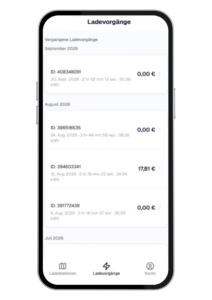
View your charging sessions and billing information


Charge conveniently across Europe using the app, in addition to your FIRMENLADEN charging card

STEP 3

Charging via the App – On the Go

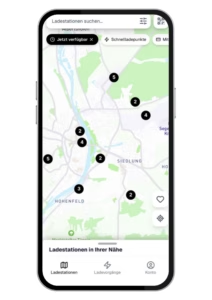
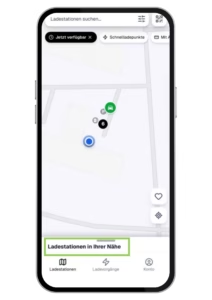
The map displays all charging points near you. These may
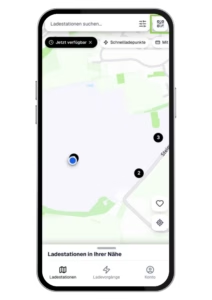
 include public charging points (@public), public charging points at company locations (@work), and your own charging point (@home).

Start a Charging Session

There are two ways to start a charging session.

Option 1: Scan the QR Code

Quickly and easily scan the QR code on the charging station. To do so, tap the QR code icon in the top-right corner of the overview screen.
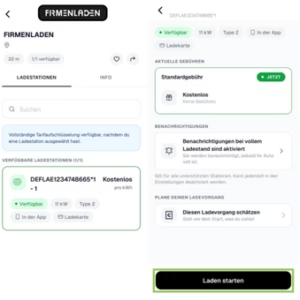
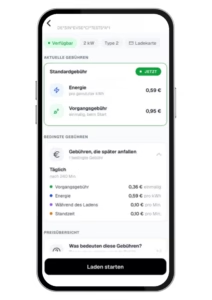
After scanning the QR code, you will be taken to the following screen.

Then tap the “Start Charging” button.

A new screen will open. Before starting the charging session, make sure your vehicle is plugged in.

Your vehicle should now be charging, and the app should display the start time of your

 charging session and the amount of energy delivered.
 

Option 2: Select a Charging Point from the Overview

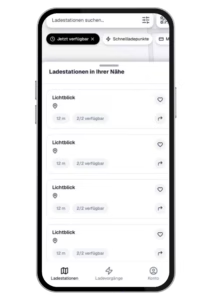
For Option 2, start from the overview screen. Either tap on a charging point near you or swipe up the “Charging Stations Near You” list.

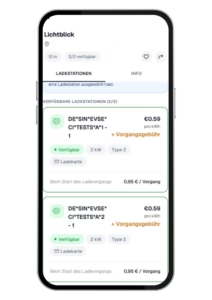
If you have opened the list view, you will see a complete list of nearby charging stations. Select the charging station you would like to use.

You will now see the selected charging point and the charging rates and conditions.

Then tap “Start Charging”. Your vehicle should now be charging, and the app should display the start time of your charging session and the amount of energy delivered.
Kontakt