These instructions will assist you in connecting your vehicle to the ACS system. You will be guided through the setup process step by step.
The process is demonstrated using the manufacturer XPENG as an example. Please select your own vehicle brand during registration and then follow the corresponding steps for your manufacturer.
If you have any questions or encounter any problems, you can reach our hotline at 0933 2593 5010 or 0933 2593 5011 (Mon–Thu 8:00 AM – 5:00 PM, Fri 8:00 AM – 3:00 PM).
VEHICLE REGISTRATION
1. Registration by email
1 Check your email for the registration link
Once your fleet manager has activated your Auto-Cloud Solution account, you will receive a registration link at your email address. Please check your inbox (and spam folder, if necessary) to continue.
Note: The registration link will only be sent from [email protected]. Please only use links from this sender address.
2 Log in via the link in FIRMENLADENWELT
Click on the registration link and log in to FIRMENLADENWELT.
3 Select the “Auto Cloud Solution” menu item in FIRMENLADENWELT
In the left-hand navigation bar of FIRMENLADENWELT, you will find the item “Auto Cloud Solution” – please click on it.
4 Add vehicle
Click on “Add vehicle” to connect your vehicle to your account.
2. Select vehicle brand
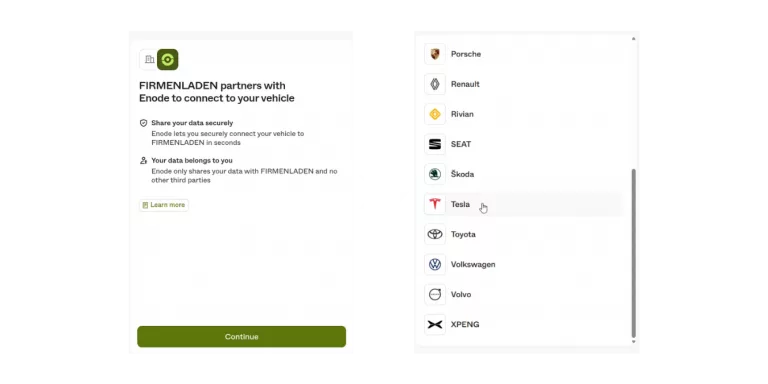
On this page, you will be redirected to our partner, a service that enables a secure connection between your vehicle and the ACS/FIRMENLADEN system.
Please click “Continue” and then select your vehicle’s brand from the list.
After clicking “Continue,” you will be redirected to the login page of your vehicle manufacturer (e.g., XPENG).
Please log in to your personal vehicle account using your credentials.
4. Confirm access rights
In the next step, the required access rights will be displayed.
Please confirm these to establish the connection between your vehicle and the ACS/FIRMENLADEN system.
5. Select and connect vehicle
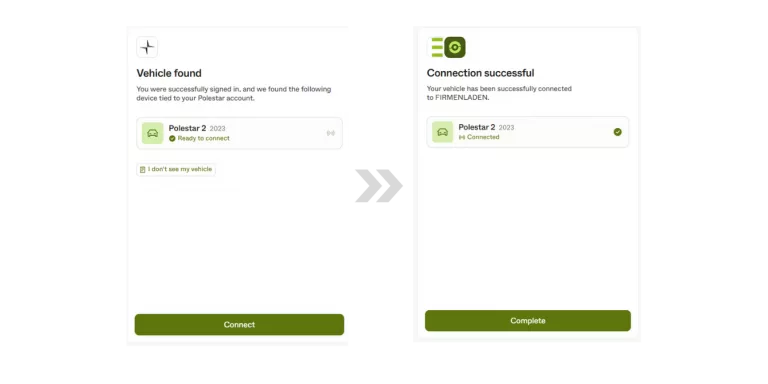
After successful login, your vehicle will be automatically detected and displayed. Please select the displayed vehicle and click “Connect” to establish the link.
Once the connection has been successfully established, a confirmation will appear. Then, click “Finish” (or “Complete”) to end the process.
6. Complete connection
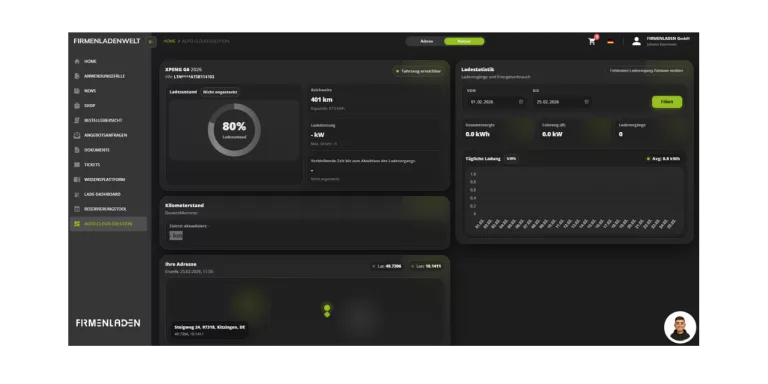
Once the connection has been successfully established, the vehicle will be displayed in the Auto Cloud Solution. You will then see your dashboard with the most important information at a glance.
Congratulations, you have successfully connected your vehicle!
Tesla REGISTRATION
3. Vehicle Confirmation
After selecting your Tesla vehicle from the list, additional confirmation may be required, depending on the vehicle model.
In this case, you will be asked to verify your vehicle either via your Tesla account or using your Tesla key card.
Please follow the instructions displayed and then click “Continue” to complete the connection process.
4. Register a Tesla account
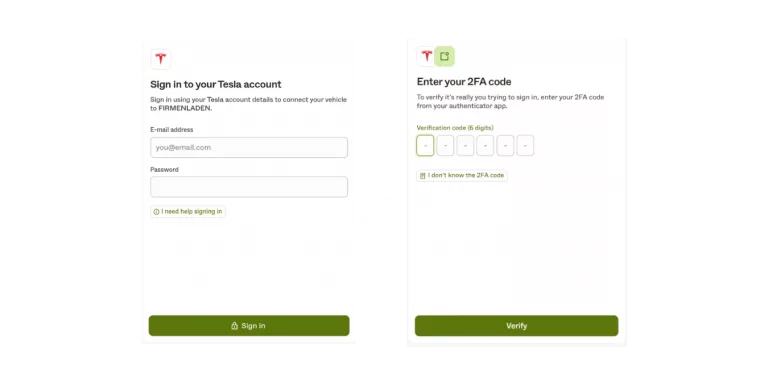
Please log in with your Tesla account credentials (same as your app credentials) to continue the connection.
After entering your credentials, you will be asked to verify your identity using two-factor authentication (2FA).
Please enter the 6-digit verification code displayed in the Tesla app and then click “Verify” to continue.
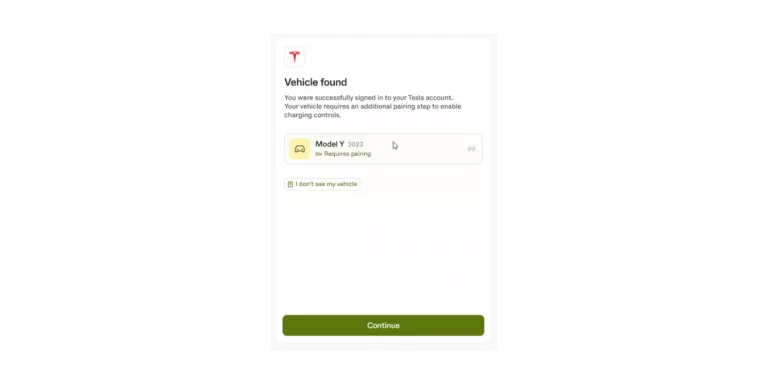
5. Select vehicle and continue
After successfully logging into your Tesla account, your vehicle will be automatically detected and displayed.
Please select the vehicle found and click “Continue” to complete the pairing and activate the charging function.
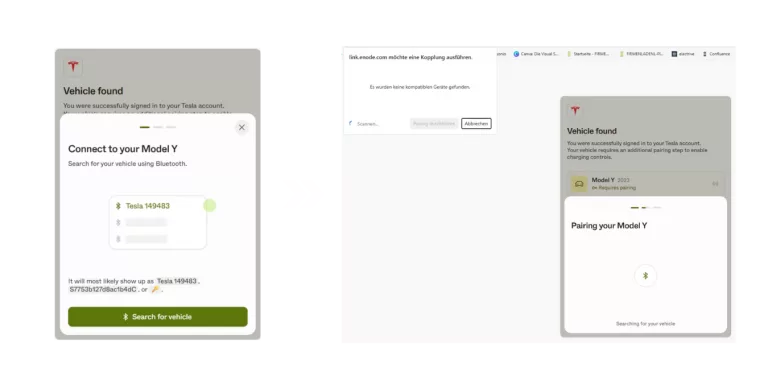
6. Coupling the vehicle
For verification purposes, a Bluetooth pairing with your Tesla vehicle will now be performed. Please ensure that Bluetooth is enabled on your smartphone and that the vehicle is nearby.
Tap “Search for vehicle,” select your vehicle from the list, and confirm the pairing. Once the connection is successful, the process will continue automatically.
7. Select vehicle and connect
After successfully logging into your Tesla account, your vehicle will be automatically detected and displayed.
Please select the vehicle found and click “Continue” to complete the pairing and activate the charging function.
8. Finish connection
Once the connection has been successfully established, a confirmation message will appear.
Then click “Finish” to complete the process. Your Tesla is now successfully connected to ACS.
9. Complete the connection
Once the connection is successfully established, the vehicle will appear in the Auto Cloud Solution. You will then see your dashboard, which displays the most important information at a glance.
Congratulations, you have successfully connected your vehicle!